

Quick Summary: 3DF Zephyr is a versatile photogrammetry software developed by 3DFlow that caters to both beginners and professionals. It offers a user-friendly, wizard-guided workflow for creating detailed 3D models from photos and videos. With flexible pricing tiers, including a capable free version, and support for a wide range of inputs like laser scans and drone imagery, it stands out as an accessible yet powerful tool in the 3D reconstruction landscape.
Photogrammetry software has transformed how we create 3D models, turning simple photographs into detailed digital assets. Among the top contenders is 3DF Zephyr, a tool that promises both power and accessibility. But in a market with heavyweights like Agisoft Metashape and RealityCapture, how does it really stack up in 2026?
This review explores the core features, workflow, accuracy, and overall performance of 3DF Zephyr. It’s a tool that aims to bridge the gap between hobbyists and GIS professionals, which is no small feat. Look, picking the right photogrammetry software isn’t just about features; it’s about finding the tool that best fits your specific workflow and project demands. So, let’s see if Zephyr delivers.
What is 3DF Zephyr? A Quick Overview
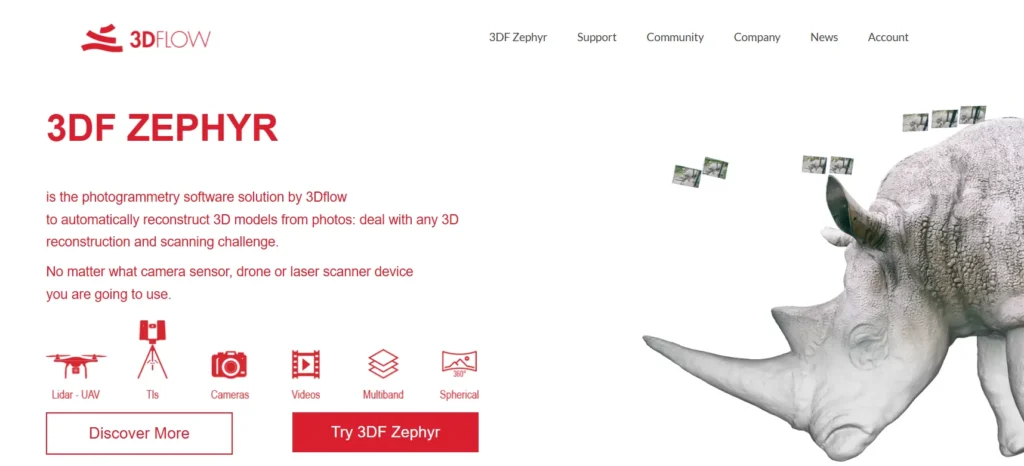
3DF Zephyr is a complete photogrammetry software solution developed by the Italian company 3DFlow. First released in 2014, it has been continuously updated, establishing itself as a robust platform for 3D reconstruction. The software is engineered to process images and videos from virtually any camera, drone, or sensor to generate high-quality 3D models.
Unlike some of its competitors that rely on third-party computer vision libraries, 3DF Zephyr is built on 3DFlow’s proprietary, in-house technology. This gives it a unique feel and performance profile. The software is well-regarded for its user-friendly, wizard-based interface, which guides users through the reconstruction process step-by-step. This makes it particularly appealing to beginners and those who want to get results without a steep learning curve.
It supports a full pipeline, from initial photo alignment and dense point cloud generation to mesh creation and texturing. Beyond the basics, it also handles laser scan data, allowing users to combine photogrammetry and LiDAR datasets within a single application. For professionals in fields like surveying and cultural heritage, this hybrid capability is a significant advantage.
Core Features and Capabilities
3DF Zephyr is packed with features designed to accommodate a wide range of projects, from small object scanning to large-scale aerial mapping. It’s not just about turning pictures into a model; it’s about providing the tools to refine, measure, and export that model for real-world use.
Versatile Data Input
One of Zephyr’s standout strengths is its flexibility with input data. It doesn’t just handle standard JPGs. The software accepts a broad range of formats, including:
- Photos: Supports common formats like JPG, PNG, TIFF, and BMP, as well as many camera RAW formats.
- Videos: Users can import video files (.mp4, .mov, .avi) directly. The software includes a smart tool to automatically extract suitable frames for reconstruction, with options to filter out blurry or overly similar shots.
- Laser Scans: The full version of Zephyr can import, align, and analyze laser scan data, making it a powerful tool for hybrid projects that require the precision of LiDAR.
- Specialized Imagery: It can also process spherical, multi-spectral, and thermal images, extending its utility into advanced mapping and inspection workflows.
The Reconstruction Workflow
The entire process is managed through a guided, step-by-step wizard that simplifies what can otherwise be a complex procedure. This makes the software highly approachable. The main stages of reconstruction are clearly defined: camera orientation (sparse cloud), dense point cloud generation, mesh extraction, and finally, textured mesh generation. While presets are available for different scenarios (e.g., close-range, aerial), advanced users can dive into the settings for each step to fine-tune the reconstruction for optimal quality and accuracy.
But here’s the thing—this user-friendliness doesn’t necessarily mean less control. You can still manually intervene, edit point clouds, and filter meshes. This balance is what makes Zephyr a compelling choice for a wide spectrum of users. It gets you to a result quickly but doesn’t lock you out of the engine room if you need to make adjustments.
Measurement and Analysis Tools
For technical applications, creating a 3D model is just the beginning. The real value often lies in what you can extract from it. 3DF Zephyr (in its Pro and former Aerial versions) provides a suite of tools for this purpose. Users can take precise measurements of distances, areas, and volumes. It can generate professional-grade outputs like true orthophotos, Digital Surface Models (DSMs), and Digital Terrain Models (DTMs).
Furthermore, it includes features for drawing CAD sections, generating paths, and creating contour lines directly on the 3D models. The ability to use ground control points (GCPs) or markers allows for georeferencing and scaling models to achieve high levels of accuracy, which is essential for surveying and mapping.
Pricing and Different Versions
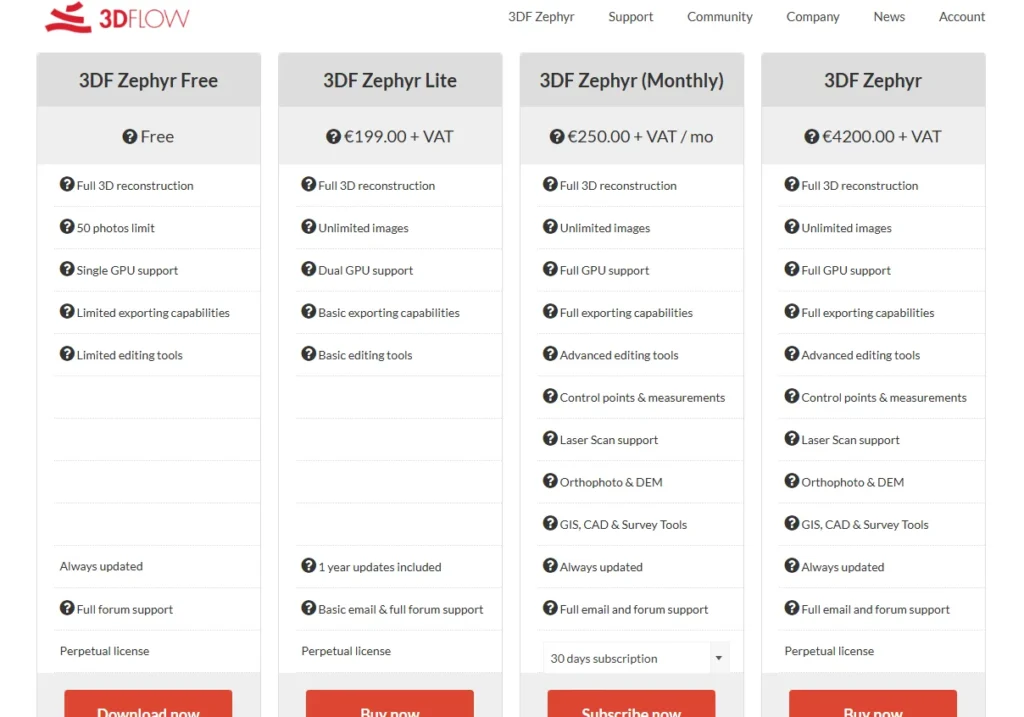
3DFlow offers a tiered licensing model for Zephyr, which makes the software accessible at different budget levels. The editions have evolved over time, with the Pro and Aerial versions being merged into a single, full-featured version since release 5.0. As of 2026, the main editions are:
| Version | Key Limitations & Features | Typical User |
|---|---|---|
| 3DF Zephyr Free | Limited to 50 photos per project. Only one GPU can be used. Limited editing and export options. | Hobbyists, students, or anyone wanting to try photogrammetry for the first time. |
| 3DF Zephyr Lite | Removes the 50-photo limit. Allows for video input and basic export formats like OBJ and STL. | Enthusiasts, artists, and small businesses needing more capacity than the free version. |
| 3DF Zephyr (Full Version) | Unlocks all features, including laser scan support, advanced measurement tools, orthophoto generation, GCPs, and batch processing. | Professionals in surveying, engineering, architecture, and cultural heritage. |
The full version is available as both a perpetual license (around €4200) and a monthly subscription (around €250). The perpetual license includes one year of updates. 3DF Zephyr Lite costs around €199 for a perpetual license. This flexible pricing structure is a major advantage, allowing users to start small with the free or Lite version and upgrade as their needs become more demanding. A 30-day trial is also available for those who want to test the full capabilities before committing.
Hardware Requirements and Performance
Photogrammetry is computationally intensive. Let’s not mince words. Your hardware will directly impact processing speed and the size of the datasets you can handle. 3DF Zephyr is no exception, and it’s optimized to take advantage of modern hardware.
Here’s a breakdown of what you’ll need:
- Operating System: 3DF Zephyr is a Windows-exclusive application.
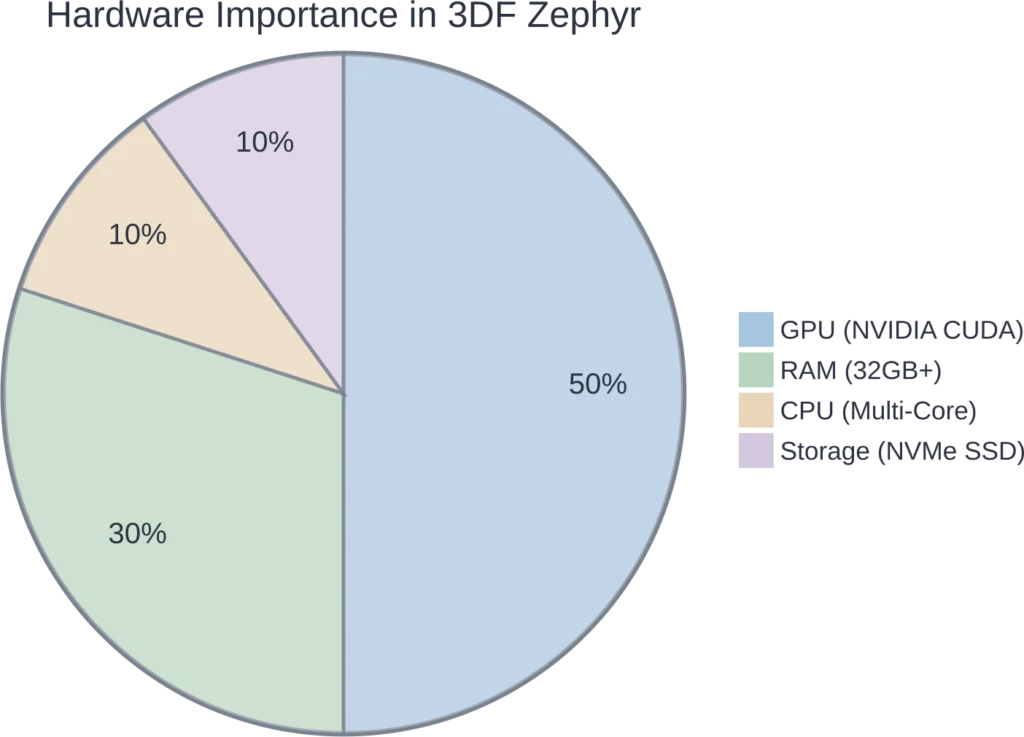
- RAM: While the minimum requirement is 16GB, this is really just to get the program running. For any serious work, 32GB is the recommended starting point, and 64GB or more is ideal for large datasets with hundreds or thousands of photos. Insufficient RAM is a common bottleneck and can lead to slow performance or even crashes on large projects.
- GPU: A powerful GPU is critical for performance. 3DF Zephyr heavily leverages NVIDIA CUDA for acceleration across its entire workflow. While it can run without a CUDA-enabled card, processing times will be significantly longer. The developers recommend using two mid-to-high-tier NVIDIA cards over a single top-tier one for the best performance. GPU memory is also important, with at least 2GB being a suggested minimum.
- CPU: While the GPU does the heavy lifting for reconstruction, a fast multi-core CPU (Quad-core or better is recommended) is still important for other parts of the workflow.
- Storage: A fast SSD, especially an NVMe drive, is highly recommended. Project files can easily swell to 20GB or more, and a fast drive will significantly reduce loading and saving times.
In practice, Zephyr’s performance is generally praised for being snappy, especially on smaller projects. It tends to feel faster and more automated than some competitors like Agisoft Metashape. However, for extremely large drone mapping jobs with hundreds of images, Metashape is often considered to scale more gracefully, while Zephyr might begin to struggle.
3DF Zephyr vs. The Competition: A Quick Comparison
No tool exists in a vacuum. The decision to use 3DF Zephyr often comes down to how it compares against other leading photogrammetry software. The main rival is Agisoft Metashape.
3DF Zephyr vs. Agisoft Metashape
This is the classic matchup. Think of it as approachability versus precision control.
- User Interface and Workflow: 3DF Zephyr wins hands-down for beginners. Its wizard-driven process is more intuitive and less intimidating than Metashape’s more traditional, settings-heavy interface. Zephyr is often described as the “get me to results already” option.
- Performance: For small to medium-sized projects, Zephyr often feels faster due to its automation. Metashape can be slower but is renowned for its stability and ability to handle massive datasets with greater control.
- Accuracy and Control: While Zephyr can achieve high accuracy (especially with GCPs), Metashape is widely considered the industry standard for scientific and survey-grade precision. It offers more granular control over every step of the process, which is a double-edged sword: it’s powerful for experts but can be overwhelming for newcomers.
- Platform Support: Metashape is available on Windows, macOS, and Linux, making it more versatile for cross-platform environments. Zephyr is Windows-only.
The short answer? Choose 3DF Zephyr for quick turnarounds, creative projects, and if you value an easy-to-learn workflow. Opt for Agisoft Metashape when absolute precision, granular control, and large-scale data handling are your top priorities.
What About Other Tools?
RealityCapture is another major player, known for its blistering processing speed, particularly on large datasets. It’s a favorite in the VFX and game development industries. However, its credit-based pricing model can be a point of contention for some users.
For those on a tight budget, Meshroom is a free and open-source option. It’s powerful but requires a specific NVIDIA GPU and has a much steeper learning curve than Zephyr. And for drone-specific workflows, platforms like Pix4D and DroneDeploy offer highly specialized features for mapping and construction.
Prepare Geospatial Data for 3D Reconstruction with FlyPix AI
3D reconstruction workflows often depend on how well source imagery is organized, reviewed, and interpreted before modeling begins. FlyPix AI supports geospatial image analysis for satellite, drone, aerial, LiDAR, SAR, and multispectral data. For workflows related to 3DF Zephyr, it can help teams detect objects, segment visible areas, classify land features, and review changes in mapped environments before or alongside 3D reconstruction work.
FlyPix AI can support 3D reconstruction projects with:
- Object detection from drone, aerial, or satellite imagery
- Area segmentation for mapped environments and surface features
- Land cover and land use classification
- Change detection across imagery captured at different times
- Custom AI model training for project-specific visual analysis
- Geospatial data sourcing and preparation
- Exportable outputs for reporting or further processing
Contact FlyPix AI to discuss geospatial image analysis support for your 3D reconstruction workflow.
The Bottom Line: Who is 3DF Zephyr For?
After a thorough review, it’s clear that 3DF Zephyr carves out a unique and valuable space in the photogrammetry market. It successfully balances ease of use with professional-grade power.
3DF Zephyr is an excellent choice for:
- Beginners and Hobbyists: The free version is one of the best entry points into photogrammetry, and the guided workflow makes learning the ropes incredibly straightforward.
- Artists and Game Developers: The ability to quickly generate textured meshes from photos or videos makes it a great tool for asset creation, especially with the Lite version offering an affordable price point.
- Educators and Students: Its accessibility makes it a fantastic teaching tool for introducing the principles of 3D reconstruction.
- Professionals Needing Versatility: For architects, engineers, or archaeologists who need a tool that can handle both terrestrial photos and laser scan data without a punishing learning curve, the full version of Zephyr is a strong contender.
That said, it might not be the top pick for GIS professionals working exclusively with massive aerial datasets, where a tool like Agisoft Metashape or Pix4D might offer better scalability and specialized features. Real talk: the best tool is the one that fits your workflow, and Zephyr’s workflow is built for speed and accessibility.
Frequently Asked Questions (FAQ)
Yes, 3DF Zephyr has a free version. However, it is limited to processing a maximum of 50 photos per project and has restricted editing and export capabilities. It’s ideal for learning, experimenting, or very small projects.
The primary difference lies in their approach. 3DF Zephyr prioritizes a user-friendly, automated workflow that is great for beginners and quick results. Agisoft Metashape offers more granular control and is often preferred for high-precision, large-scale survey work where meticulous data integrity is paramount.
Yes, the Lite and Full versions of 3DF Zephyr can import video files directly. The software includes a feature to automatically extract and select the most suitable frames for the 3D reconstruction process, filtering out blurry or redundant images.
You need a 64-bit Windows PC. For good performance, a system with at least 32GB of RAM, a multi-core processor, and a powerful NVIDIA graphics card with CUDA support is highly recommended. A fast SSD is also beneficial for handling large project files.
3DF Zephyr can export to a variety of standard 3D formats. The Lite version supports PLY, OBJ/MTL, FBX, and STL. The full version supports a wider range of formats, including those used in professional GIS and CAD software, as well as direct uploads to platforms like Sketchfab and YouTube.
The accuracy of the reconstruction depends heavily on factors like the quality of the input photos, camera calibration, and the use of control points. With a good dataset and workflow, it can produce highly accurate models. The full version’s support for Ground Control Points (GCPs) allows it to achieve centimeter-level accuracy for professional surveying and mapping applications.
Yes, 3DF Zephyr is capable of processing aerial imagery from drones. The full version includes tools specifically for this purpose, such as GCP support and the ability to generate orthophotos and DTMs, making it a viable tool for drone mapping workflows.