

OpenClaw isn’t just another chat interface with a fancy name. It’s closer to a control layer for AI agents that can read files, call tools, and respond inside the apps you already use. That power is the whole point. It’s also the reason you shouldn’t treat it casually. If you approach it like ChatGPT with a different logo, you’ll miss what makes it useful. If you approach it like infrastructure, you’ll get real leverage out of it.
How OpenClaw Turns Chat Into Action
OpenClaw is not just a chat interface with add-ons. It operates as a local gateway that connects your chat platform, your AI model, and your action layer into one controlled system. It links to tools like Telegram or Slack, connects to a model running locally through Ollama or via a cloud provider such as OpenAI or Anthropic, and manages file access, APIs, and script execution through persistent local memory. Everything flows through this single gateway.
In practice, a message enters through chat, the agent evaluates it, optionally calls a tool, and returns a structured result. It can read logs, summarize errors, create tickets, update CRM records, or execute predefined scripts. Context carries across sessions, which turns OpenClaw into an operational layer rather than just another assistant.

FlyPix AI and Real-World AI Automation
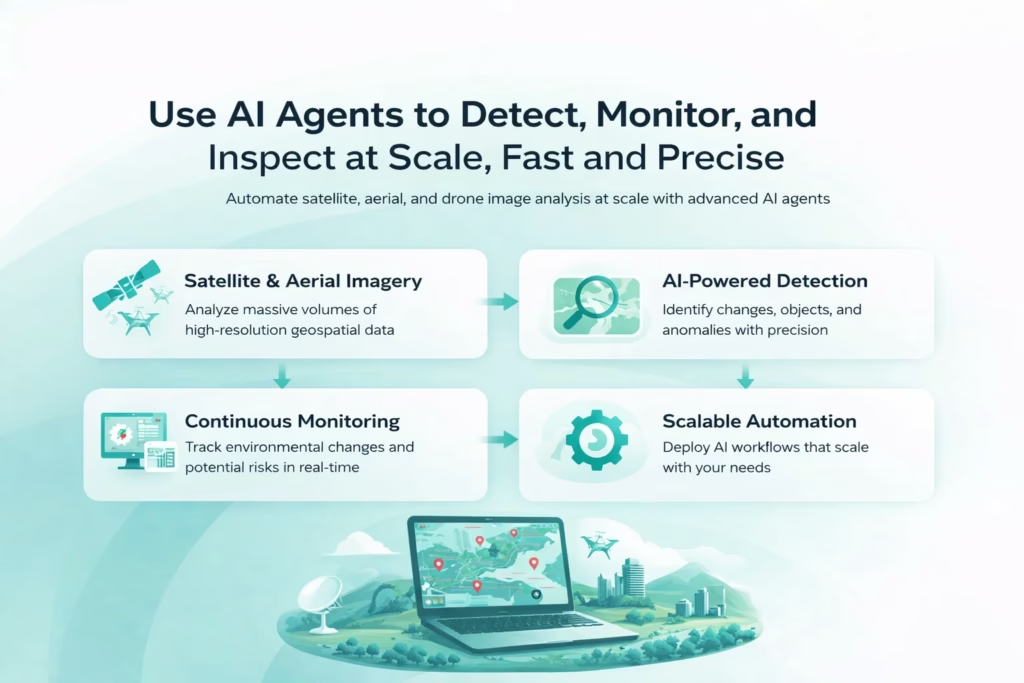
At FlyPix AI, we apply AI agents in a different domain, but the principle is similar. Automation creates value only when it connects directly to real operational data. Our platform focuses on satellite, aerial, and drone imagery, where AI models detect, monitor, and inspect objects at scale. Instead of manual annotation, we automate geospatial analysis with models trained to identify and outline objects accurately.
We build the system to be practical from the start. Users can train custom AI models without deep programming knowledge, define their own annotations, and apply them across industries such as construction, agriculture, infrastructure maintenance, and government projects. The focus is not abstract intelligence. It is measurable efficiency in complex visual environments.
You can also find FlyPix AI on LinkedIn if you’d like to connect with us there. For our company, AI is not about experimentation. It is about turning visual data into structured results that teams can use confidently in real operations.
Start With a Clear Use Case
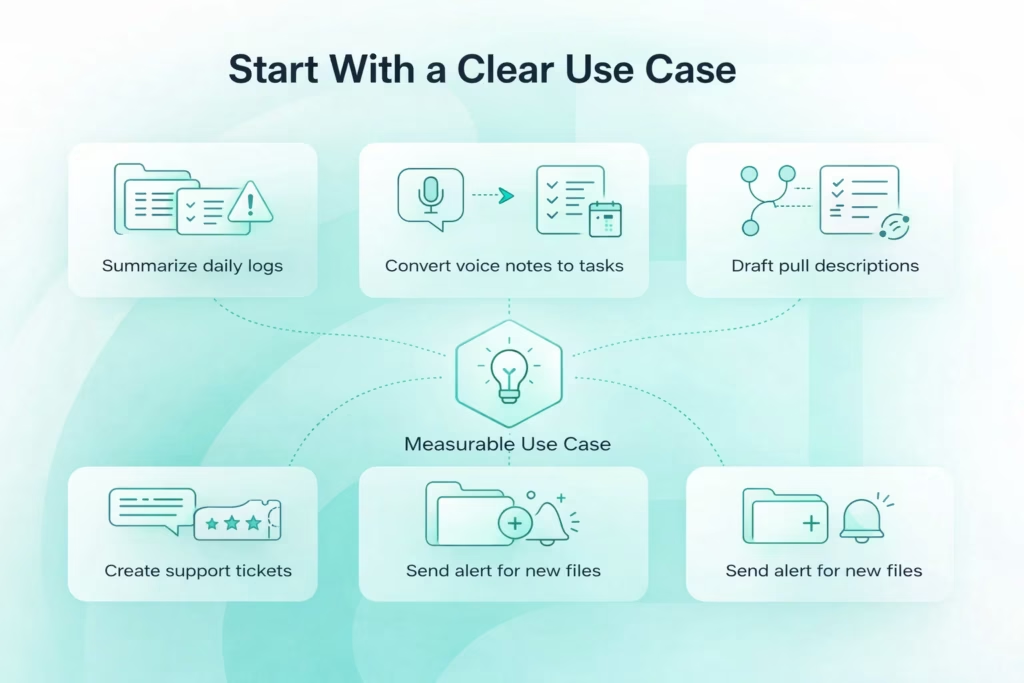
The biggest mistake people make with OpenClaw is simple: they install first and think later. When the system is running but the purpose is unclear, you end up adjusting settings instead of solving a real problem. Before installing anything, define one measurable use case. It should be specific enough that you can clearly say whether it works or not. Strong first targets usually look like this:
- Summarize daily logs from a specific folder and highlight the latest critical error
- Convert Telegram voice notes into structured tasks with title and deadline
- Draft pull request descriptions using repository context and recent commits
- Create support tickets from structured chat input with priority levels
- Monitor a folder and send an alert when new files appear
Each example has a clear trigger, defined input, and observable output. That structure keeps setup focused and avoids unnecessary complexity. Start narrow. If the goal is vague, you will spend more time fixing architecture than creating value. OpenClaw works best when tied to one measurable workflow. Once that loop is stable, expansion becomes intentional rather than experimental.
Prepare Your System for OpenClaw
A stable OpenClaw setup starts before you run the installer. This is not a lightweight chat plugin. It is a local gateway that can read files, execute tools, and connect to external models. Your machine, network, and permissions are part of the system. A few minutes of preparation upfront prevents hours of troubleshooting later.
At a minimum, you need Node.js latest LTS, a terminal you are comfortable using, and either a cloud model API key from OpenAI or Anthropic, or Ollama if you plan to run a local model. Telegram is the simplest interface for first testing. If you are going local, plan your hardware realistically. Sixteen gigabytes of RAM is a reasonable baseline for stable performance. Larger models will require more.
Your environment matters. Do not install this blindly on a corporate laptop. Do not expose ports publicly for convenience. Avoid running with elevated privileges unless absolutely necessary. OpenClaw reads local files and executes actions. That is its strength. Treat it with the same care you would give any system that has direct access to your data.
OpenClaw Installation and Initial Setup
OpenClaw moves quickly, so the safest approach is to stick to the official installation flow. The goal here is simple – get the gateway running cleanly and predictably. No experiments, no custom tweaks yet. Just a stable foundation.
1. Choose Your Installation Method
Depending on the current distribution, you will install OpenClaw either through a bootstrap script or via npm. Both methods aim to achieve the same result – install dependencies and register the gateway service. The typical bootstrap flow looks like this:
| curl -fsSL https://openclaw.ai/install.sh | bash |
If you prefer npm, the global install path is straightforward:
| npm install -g openclaw@latest |
Neither method should feel complicated. If installation throws errors, stop and resolve them before proceeding. A clean install matters more than speed.
2. Run the Onboarding Process
After installation, run the onboarding wizard:
| openclaw onboard |
This step configures the gateway and sets it up as a background service. Once completed, the system should report that the gateway is active. At this point, OpenClaw is not just installed – it is operational.
3. Access the Control UI
By default, the Control UI (dashboard) runs locally at:
| http://127.0.0.1:18789/ (or http://localhost:18789/) |
Open that address in your browser. If everything is configured correctly, you should see the dashboard. If it does not load, check the following:
- Confirm the gateway service is running
- Verify no other process is using port 18789
- Review local firewall settings
One important rule – keep the gateway bound to localhost. Do not expose it publicly. The Control UI manages an agent that can access local files and execute tools. Restricting access to 127.0.0.1 keeps that control surface secure while you build and test.
Setting Up Telegram Integration
Telegram is one of the fastest ways to activate OpenClaw. The setup is simple, the API is easy to provision, and you can verify the full message loop within minutes. It is ideal for initial testing when your focus is the agent logic, not integration overhead.
Open Telegram, search for @BotFather, and type /newbot. Choose a name and copy the API token provided. During OpenClaw onboarding, paste that token when prompted. Once saved, the gateway connects your local agent to Telegram. Accuracy matters here. A single incorrect character can break the connection.
After setup, send a test message to your bot and check the Control UI. If the message appears and a reply returns to Telegram, the loop is working. That confirms the gateway, model, and communication layer are functioning together. From here, you move from setup to building real workflows.
Choosing the Right Model
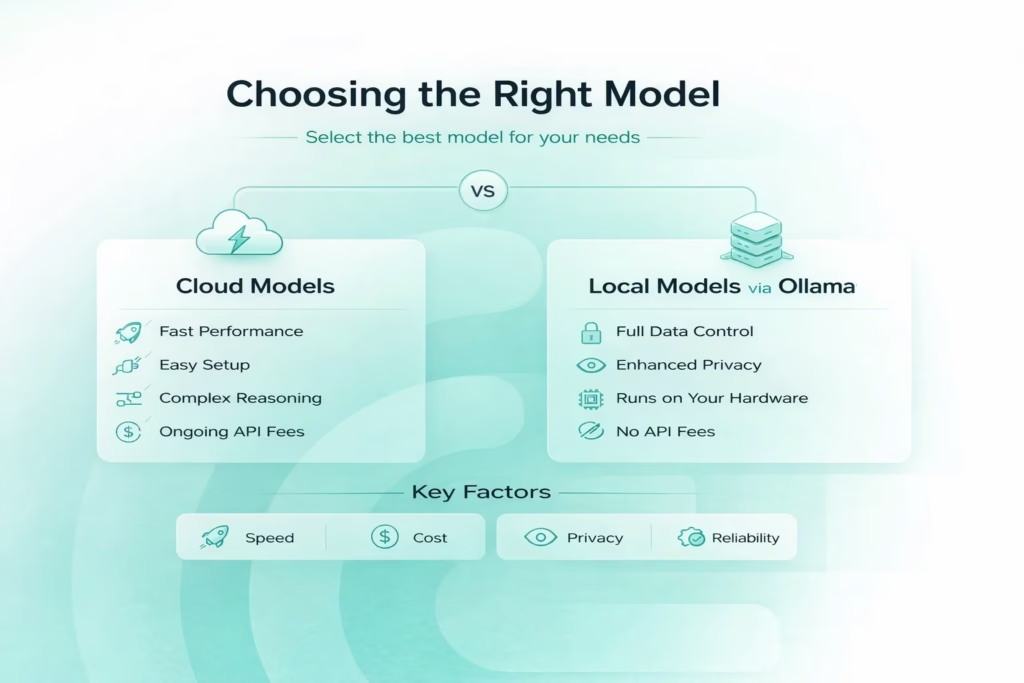
Your model choice directly affects speed, cost, privacy, and overall reliability. OpenClaw does not lock you into a single provider, which is a strength. But flexibility only helps if you understand the tradeoffs. There are two primary paths – cloud models and local models. Each serves a different operational need.
1. Cloud Models – Fast, Powerful, Low Friction
Cloud models are the fastest way to get strong reasoning performance without worrying about hardware. You connect an API key, configure the provider, and the agent is ready. Cloud models are typically best for:
- Complex reasoning and structured decision making
- Coding workflows and debugging
- Rapid setup with minimal configuration
- Teams that do not want to manage infrastructure
Models such as Claude 3.5 Sonnet and GPT-4 class systems handle agentic workflows with high reliability. They interpret instructions clearly, manage multi-step reasoning well, and respond quickly. The tradeoffs are clear:
- Ongoing API costs
- Data is transmitted outside your local environment
- Dependency on external uptime
For many users, this is acceptable. For others, especially in sensitive environments, it may not be.
2. Local Models via Ollama – Control and Containment
If privacy and autonomy matter, running a local model through Ollama is a logical choice. In this setup, the model stays on your machine. No external API calls. No data leaving your network. It is well suited for:
- Data-sensitive workflows
- Development environments
- Offline capability
- Full control over execution
Ollama supports models such as Qwen2.5-Coder, GLM-4 series, Llama 3.1/3.2 variants, and other models with large context windows suitable for agents. For OpenClaw, context size matters.
The agent depends on the model’s context window to manage memory, so smaller windows can reduce consistency in longer sessions. A 32k-128k context window is a practical baseline for stable reasoning (depending on the model; many recommended Ollama models for OpenClaw start at 32k-128k).
Performance is tied to your hardware. If responses slow down or tool calls lag, it is usually a resource constraint, not a configuration error. The key is choosing a model that fits your available memory and processing power.
3. Making the Practical Choice
There is no universal answer. Some teams use cloud models for heavy reasoning and local models for development or sensitive tasks. Others commit fully to one approach. Choose based on:
- Sensitivity of your data
- Performance requirements
- Budget constraints
- Hardware capability
The right model does not just improve responses. It stabilizes the entire workflow. When the model layer aligns with your operational needs, OpenClaw performs predictably and efficiently.
Understanding Persistent Memory
Persistent memory is one of the features that sets OpenClaw apart from a typical chat assistant. Instead of starting fresh each time, It stores persistent memory locally using SQLite for indexing, chunked Markdown files as the source of truth, and hybrid search (BM25 + vector embeddings). This is more than a chat log. It is organized context that the agent can reference when making decisions later.
For example, you might tell the agent, “My internal dashboard uses React and Tailwind. Prefer functional components.” A few days later, you ask it to build a header component. If memory is working properly, it will follow those earlier preferences without you repeating them. That continuity comes from the stored context being fed back into the reasoning process.
This is where efficiency builds over time. Instead of rewriting instructions in every session, you accumulate durable context inside the system. It is worth reviewing stored memory occasionally to see what is being saved. When you understand how memory works, you keep the agent consistent and predictable as your workflows expand.
Building Your First Real Workflow
Once the connection is stable, it is time to move from conversation to execution. OpenClaw becomes practical when it runs structured tasks, not just replies to open questions. That requires defining a workflow clearly, so the agent knows what to do and how to confirm the result. A reliable workflow always includes four components:
- Trigger: The specific command or event that activates the process, such as typing “new ticket” in Telegram.
- Input structure: The exact data the agent needs to complete the task, for example title, description, and urgency level.
- Tool execution: The defined action performed by the agent, such as sending a request to your ticketing system API.
- Confirmation output: A structured response that proves completion, like returning the ticket ID and a short summary.
Take ticket automation as a simple example. When you type “new ticket,” the agent should collect the required fields, call the API, and return a confirmation. No guessing, no assumptions. Clear triggers and structured inputs keep the process reliable. Start with one focused workflow, make it stable, then expand deliberately.
Operating OpenClaw in Real Environments
Once your first workflow is stable, real usage begins. This is the point where OpenClaw either becomes part of your daily operations or remains a technical experiment. The difference is not in adding more automations. It is in observing how the existing process behaves under real conditions. Let it run. Test it with varied inputs. Watch how it handles edge cases before expanding further.
In day-to-day use, visibility matters. Review activity in the Control UI. Check which tools are being triggered and how outputs are structured. If results feel inconsistent, the cause is usually scope drift or unclear instructions rather than model limitations. Small refinements to structure often produce more stability than changing the model itself.
Expansion should be deliberate. Add new tasks gradually and isolate them from existing processes until they are predictable. OpenClaw performs best when workflows are clearly bounded and memory remains relevant. Daily use is not about constant experimentation. It is about controlled scaling of an AI system that you understand and can manage with confidence.
Practical Advice and Common Mistakes to Avoid
OpenClaw can run smoothly for months, or it can turn into a constant troubleshooting exercise. The difference usually comes down to discipline. Most issues do not come from the model itself. They come from setup decisions, unclear scope, or overlooked boundaries. Below are the most common pitfalls and performance habits that separate stable deployments from fragile ones.
Operational Mistakes to Avoid
These are patterns seen repeatedly in real deployments. They may not break the system immediately, but they create risk and instability over time.
- Installing on a corporate device without approval: OpenClaw reads local files and can send data to external models, which may violate internal policies.
- Feeding proprietary code into cloud models without review: Sensitive data transmitted through APIs can create compliance and security concerns.
- Granting unrestricted filesystem access: The agent should not have access to your entire home directory unless absolutely necessary.
- Exposing the gateway port for convenience: Opening port 18789 publicly increases attack surface without real benefit.
- Treating memory as infallible: Persistent memory is powerful, but it can store outdated or incorrect context if not reviewed.
- Overcomplicating the first workflow: Starting with a multi step automation instead of a simple task increases configuration errors.
The guiding principle is simple – keep the scope narrow, keep permissions limited, and expand gradually once stability is proven.
Performance and Stability Optimization
If performance feels inconsistent, the cause is often structural rather than mysterious. OpenClaw depends on model capacity, memory management, and prompt clarity. Small adjustments usually make a noticeable difference.
- Reduce model size when running locally: Larger models require more memory and processing power, which increases latency.
- Increase available RAM if possible: Local reasoning improves when the system has sufficient headroom.
- Clean up excessive memory accumulation: Long running sessions with large stored context can slow processing.
- Limit tool invocation loops: Repeated or nested tool calls can create unnecessary delays.
- Use structured prompts instead of open ended instructions: Clear input reduces token usage and improves response precision.
Performance improves when instructions are scoped and resources are aligned with workload. OpenClaw does not require constant tuning. It requires deliberate configuration and realistic expectations. When those are in place, the system remains efficient and predictable.
Conclusion
OpenClaw becomes powerful the moment you stop treating it like a chatbot and start treating it like infrastructure. It is not about clever replies. It is about controlled execution. When you define a clear objective, configure the gateway properly, choose the right model, and structure your first workflow carefully, the system starts to feel less experimental and more operational.
The key is discipline. Keep the scope narrow at first. Protect your environment. Build one workflow that works reliably, then expand. OpenClaw rewards clarity. The cleaner your inputs and permissions are, the more predictable the outcomes become. Used correctly, it is not just a messaging layer with tools attached. It is a controllable AI execution layer that can integrate into real work. That is where it delivers value.
FAQ
The installation itself is straightforward if you follow the official commands. Most friction comes from unclear goals, not technical complexity. If you define one specific workflow before installing, setup becomes much smoother.
Yes, if you use a local model through Ollama. In that configuration, the model and gateway run on your machine. No external API calls are required. Keep in mind that performance depends on your hardware capacity.
That depends on your organization’s policies. OpenClaw can read local files and interact with external models. Installing it on a corporate device without approval may violate internal security rules. It is better to use a personal machine or a dedicated environment.
Start with something measurable and low risk, such as summarizing logs, drafting structured messages, or creating tickets. Avoid complex multi-step automations in the beginning. Stability matters more than ambition at this stage.
Persistent memory allows the agent to retain context across sessions, which improves continuity. However, larger context windows and long sessions can increase resource usage, especially with local models. Reviewing stored memory periodically helps maintain clarity and efficiency.