

OpenClaw is an open-source personal AI assistant that lives in your regular chat apps – Telegram, WhatsApp, Discord, Slack, iMessage, and so on. You message it like you message a friend, and it can actually do things: read and send emails, manage your calendar, search the web, organize files, run terminal commands, book flights, and more.
The program itself is 100% free to download and use. The only real cost usually comes from the AI model that powers it (Claude, GPT, Gemini, etc.). If you run something like Claude Opus non-stop for very heavy tasks, the bill can climb fast. But most people don’t need that, and there are several practical ways to make the whole setup cost exactly $0 – both now and long-term.
What Is Openclaw?
OpenClaw is a free, open-source AI assistant that lives inside your normal chat apps – Telegram, WhatsApp, Discord, Slack, iMessage, Signal and others. You just message it like you message a friend, and it can actually do real things for you: read and write emails, manage your calendar, search Google, organize files on your computer, run terminal commands, book flights, control your browser and much more. It remembers long conversations, can work on schedule by itself, and even learns to write new skills if you ask.
The program is 100% free forever – no subscription, no hidden fees. You download it once and run it on your own computer or cheap/free server. The only possible cost comes from the AI brain you connect to it (like Claude, GPT, Gemini or free local models). That’s why so many people run OpenClaw completely free in 2026 – using local models on their laptop, free Oracle Cloud server, or startup credits for premium AIs.

FlyPix AI: Streamlining the Workflow Around Your Geospatial Data
Our team at Flypix AI is dedicated to saving you time – up to 99.7%, to be exact – by automating the detection and monitoring of objects in satellite and drone imagery. Whether you are tracking construction progress or monitoring crop health, our platform handles the complex geospatial analysis so you don’t have to. However, we know that the work doesn’t end with a detected object; there are still reports to write, files to organize, and team syncs to schedule.
Integrating a free tool like OpenClaw into your daily routine is a perfect way to extend that efficiency. By running a local AI model, you can maintain the same high standards of data privacy we value at FlyPix AI while automating the administrative tasks that follow a geospatial survey. We believe that by combining our precise automated imagery analysis with a locally-hosted personal assistant, professionals in forestry, agriculture, and infrastructure can stay focused on making critical decisions rather than getting bogged down in manual data management.
Option 1. Run Everything Locally With Ollama
The most private and truly free way is to run everything right on your own computer using Ollama.
Ollama lets you run open-source AI models directly on your machine. OpenClaw thinks it’s talking to a cloud API, but everything actually stays local – nothing leaves your computer unless you ask for web search.
Hardware You Need
- Apple Mac with M-series chip and 16 GB RAM is the bare minimum. It can run smaller 32B models decently.
- NVIDIA RTX 3090/4090 (or similar) with 24 GB VRAM gives comfortable speed for 32–34B models.
- Server-grade GPU with 48+ GB VRAM lets you run even the largest open models smoothly.
How to Set It Up
Setting up Ollama with OpenClaw is really easy and takes just a few minutes. Here’s a clear, step-by-step guide in plain English.
- Install Ollama
- Download a Good Model
- Open your terminal (or command prompt) and type: ollama pull qwen2.5:32b
- Tell OpenClaw to use your local model: export OLLAMA_API_KEY=”ollama-local”
- Start OpenClaw as Usual
Extra Tips for Better Results
- Quantization matters: Ollama pulls quantized versions by default (like Q4_K_M) to save VRAM and boost speed without much quality loss.
- Context length: OpenClaw needs at least 64k tokens for good memory on long chats/tasks. Most 32B+ models support this now.
- Speed tweaks: If slow, close other apps, use a smaller quant (Q3/Q4), or add –num-gpu flags if using GPU.
- Updates: Run ollama pull again for newer versions – models improve fast in 2026.
Option 2. LM Studio – Same Idea, but With a Nice Interface
If typing commands in a terminal feels annoying or old-school, LM Studio is the perfect alternative.
It does almost exactly the same thing as Ollama (runs open-source AI models locally on your computer), but everything happens in a beautiful, easy-to-use app with buttons, menus, and live stats.
Think of it as “Ollama with a friendly face”: you search for models, download them with one click, watch your GPU or CPU usage in real time, tweak settings without editing files, and start a local server with a big green button.
Hardware Requirements
Exactly the same as Ollama:
- Minimum: Mac M-series with 16 GB RAM (runs smaller 32B models okay).
- Comfortable: NVIDIA RTX 3090/4090 with 24 GB VRAM for 32–34B models.
- Best: Server GPU with 48+ GB VRAM for the biggest models.
How to Set It Up (Step by Step)
- Download and Install
- Go to lmstudio.ai, click “Download” for your system (Mac, Windows, or Linux).
- Run the installer
- Find and Download a Model
- Start the Local Server: lms server start –port 1234
- Connect OpenClaw to It: create or edit ~/.openclaw/openclaw.json and add the lmstudio provider (see official docs for exact JSON – baseUrl: “http://127.0.0.1:1234/v1”, apiKey: “lmstudio”). Then restart OpenClaw.
Why People Choose LM Studio
- No terminal needed at all – everything is point-and-click.
- Super easy to try different models quickly (great if you want to test 3–4 models in one evening to see which one is best at your tasks like email sorting or file organization).
- Built-in chat window to test the model right away before connecting it to OpenClaw.
- Clear graphs showing memory usage, speed, and temperature – you instantly see if your hardware is happy.
- One-click model updates and easy switching.
It’s especially good for beginners or anyone who just wants a smoother experience without learning command-line stuff.
Option 3. Free Short-Term Cloud Credits and Trials
A few companies give new users free credits or compute time that you can use with OpenClaw.
Examples that people actually use:
- AMD developer program: $100 in compute credits, enough to run very large open models (100B+) on powerful GPUs for 40–60 hours.
- Some smaller inference platforms: small free credits or free tiers for models like Kimi K2.5 (recently made free for OpenClaw users).
- Brand new accounts on major providers: sometimes $5–20 in trial credits.
Why It’s Useful
Great for testing strong models without buying expensive hardware. You get much better quality for a short time.
The Catch
Credits run out (usually 30 days or fixed amount), so it’s not forever.
Option 4. Oracle Cloud Always Free Tier – Free Server That Never Expires
This is one of the most popular truly free 24/7 options right now. After you sign up and verify your account, Oracle gives you forever (not a trial):
- 4 ARM cores
- 24 GB RAM
- 200 GB storage
That’s plenty to run OpenClaw + Ollama with a 32B model and still have room for background tasks, scheduled jobs, and several chat connections.
You install OpenClaw the normal way, set up Ollama, connect your messaging apps, and the bot stays online all the time – even when your laptop is off.
Downsides: ARM CPUs are a bit slower on some models than x86, network speed is average, but for personal use it’s more than enough. Many people run their assistant this way for months without issues.
Option 5. Collect Startup / Developer Credits for Premium Models
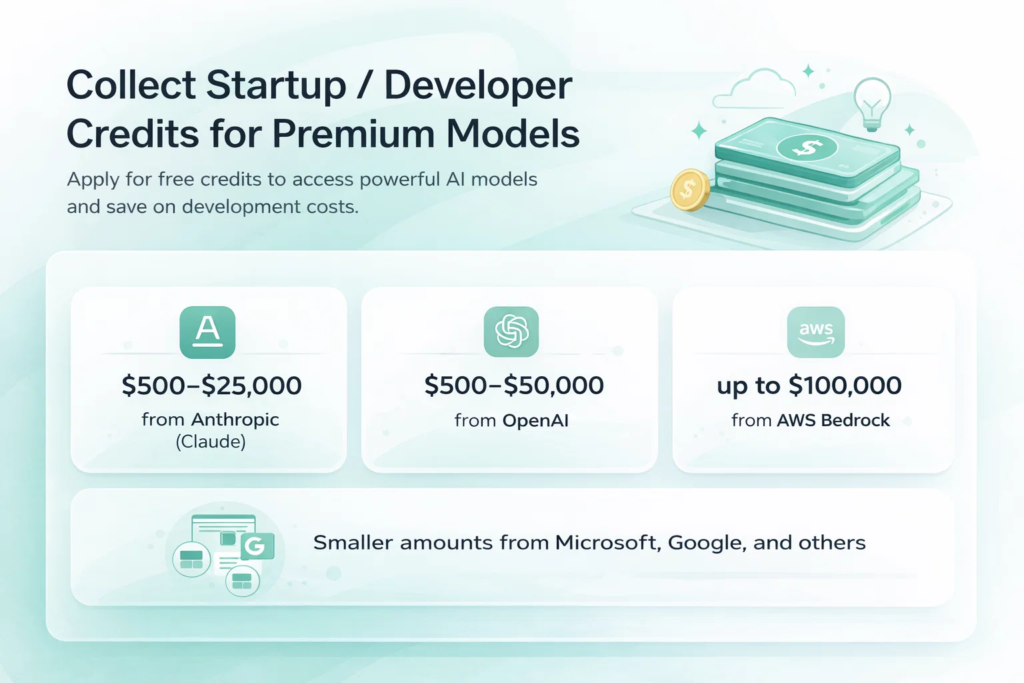
There are websites and programs that list every possible free credit offer for AI companies. You can apply and get:
- $500–$25,000 from Anthropic (Claude)
- $500–$50,000 from OpenAI
- up to $100,000 from AWS Bedrock
- smaller amounts from Microsoft, Google, and others
If you qualify for a few of them, you end up with thousands (sometimes tens of thousands) of dollars in free API credits. That can run OpenClaw on the very best models (Claude Sonnet / Opus level) for months or even 1–3 years depending on how much you use it.
The process usually asks for a business email, sometimes a short description of what you’re building. Some programs want a quick interview.
This is the closest you can get to “free Claude forever” without local hardware limits.
Free vs Paid: Quality Comparison for OpenClaw in 2026
| Task / Aspect | Free (Local Ollama, 32B models like Qwen 2.5) | Paid (Claude via credits or subscription) | Who Wins for Most People |
| Daily stuff (email, files, reminders) | Very good, fast, reliable | A bit better at smart replies | Free (almost the same) |
| Calling tools & multi-step work | Usually works well, but sometimes fails | Much more reliable, fewer mistakes | Paid |
| Hard thinking & planning | Okay for normal tasks, weaker on tough ones | Handles really complex stuff best | Paid (big difference) |
| Writing emails or posts | Good for short texts, not super polished | Sounds more natural and creative | Paid |
| Coding & scripts | Strong with coder models, great for free | Slightly better on very hard code | Almost tie (free is close) |
| Long conversations / big files | Good enough (64k+ context) | Much longer memory, handles huge amounts | Paid for heavy use |
| Privacy & working offline | 100% private, no internet needed | Data goes to the cloud | Free |
| Speed | Always the same (depends on your PC) | Fast, but can slow during busy times | Free |
| Cost | Free forever (after you buy hardware) | Free with credits for months, then paid | Free long-term |
| Overall for normal daily use | Covers 80–90% of what you need | Best quality, least errors | Hybrid: free most days, paid for hard stuff |
Quick Security Reminder
OpenClaw is powerful because it can really act on your computer or server – read/write files, send emails, run code. That same power means mistakes or bad instructions can delete things, leak keys, or break stuff.
Basic rules people follow:
- Run it inside Docker or as a separate non-admin user
- Keep all its files in one isolated folder
- Never connect it to public groups or shared chats
- Be very clear in every message about what folders it can touch
- Test new skills or big changes on a throwaway virtual machine first
Bottom Line
In 2026 you can run OpenClaw completely free with no monthly subscription at all. The simplest forever-free option is using Ollama to run a local 32B model right on your own computer for maximum privacy and zero ongoing cost. If you want it online 24/7 without keeping your laptop awake, set it up on Oracle Cloud’s Always Free tier. For the highest quality on tough tasks and longer usage, apply to a few startup or developer credit programs to get free access to top models like Claude or GPT until the credits run out (often months or even years with light use). Every choice has trade-offs: local models are a bit weaker on complex reasoning, Oracle’s ARM servers can be slower, and credits require some application effort. Start simple with Ollama plus a solid 32B model, test how it feels for your daily needs, then layer on Oracle or credits if you want more power – you’ll quickly see what suits your hardware, patience, and priorities best.
FAQ
Yes – open-source, no license cost, download and use forever.
Yes – if you use local models (Ollama / LM Studio). Only web search or external APIs need internet.
32–34 billion parameters usually handles email, files, calendar, and basic automation reliably.
Depends on how much you get and how heavily you use the bot. Light/medium use → many months. Heavy use → 6 months to 2–3 years if you stack several programs.
Yes, thousands of people do it. Just set it up carefully and monitor the first week.
No – not on the hardest tasks. But for 80–90% of normal personal assistant work, they’re close enough.
Yes – OpenClaw is built to switch providers or local servers easily. Just update the config and restart.